How to use the tabs and links in your planner
Every tab, date and contents entry in your planner is a link to another page in the same file. Once you know the loop below, you'll never scroll through hundreds of pages again.
You'll need
- Your planner open in GoodNotes, Notability, Samsung Notes or another PDF note app
44-second video with captions, no sound. Filmed on the real site and real planner pages.
Step by step
- 1
Start on the contents page
The contents page lists every month and section. Each entry is a link.
- 2
Turn off the pen first
Note apps follow links only when you're not writing. Use read-only or view mode, or tap with a finger if only your stylus writes.
- 3
Tap a month tab
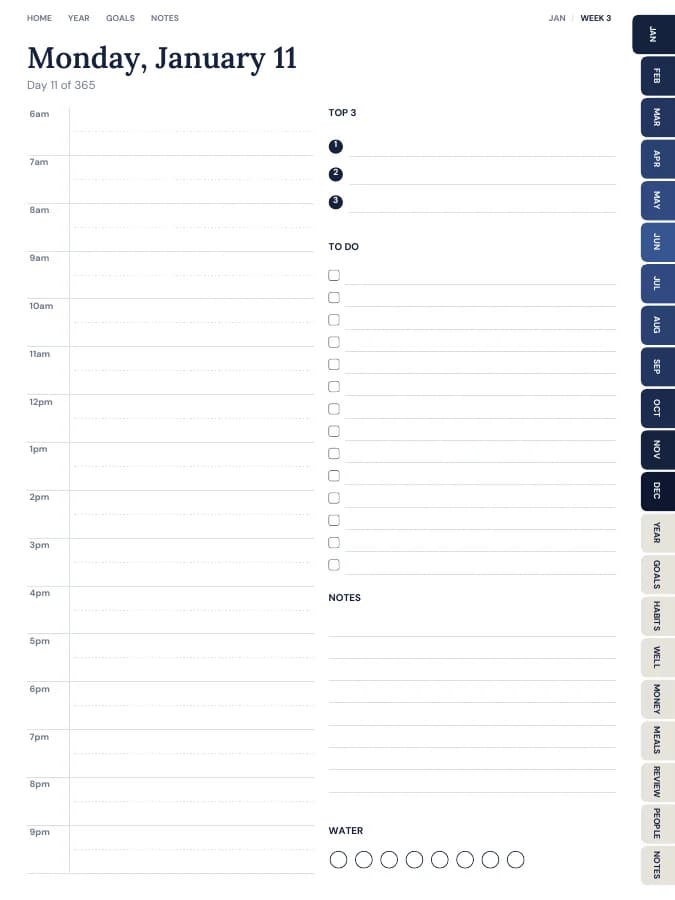
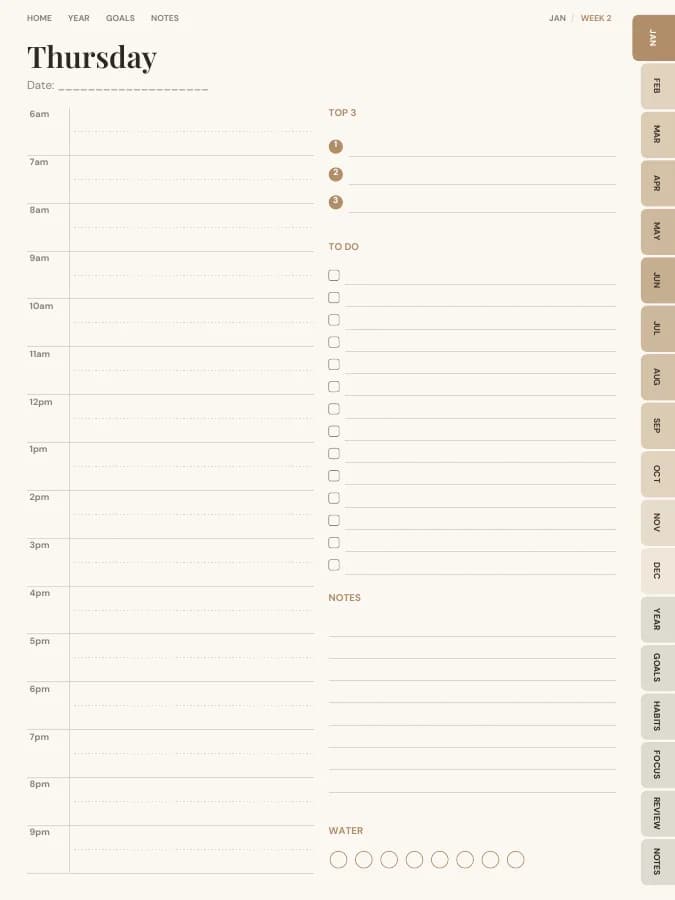
The tabs down the side of every page jump straight to that month or section.
- 4
Tap a week or a date
On a month page, tap a week to open its weekly page.
- 5
Open a day
On the week, tap a day's heading to open its daily page, if your planner has them.
- 6
Jump to a section
Section tabs, like habits or budget, open the first page of that section from anywhere.
- 7
Go back to Home
The links at the top of each page take you back to the contents, the year and your goals.
- 8
Switch the pen back on
When you're on the page you want, turn the pen back on and write.
Tapping draws a dot?
That means the pen was active. Undo the dot, switch to read-only or view mode, and tap again.
Planners to try it with
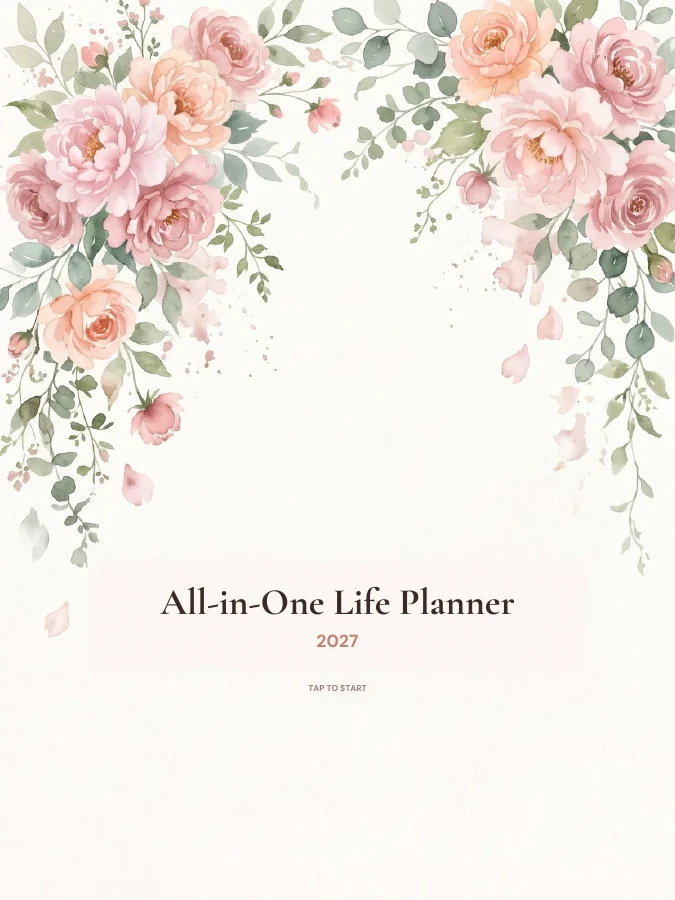
All-in-One Life Planner
Your whole year — goals, habits, money and meals — in one tabbed planner.
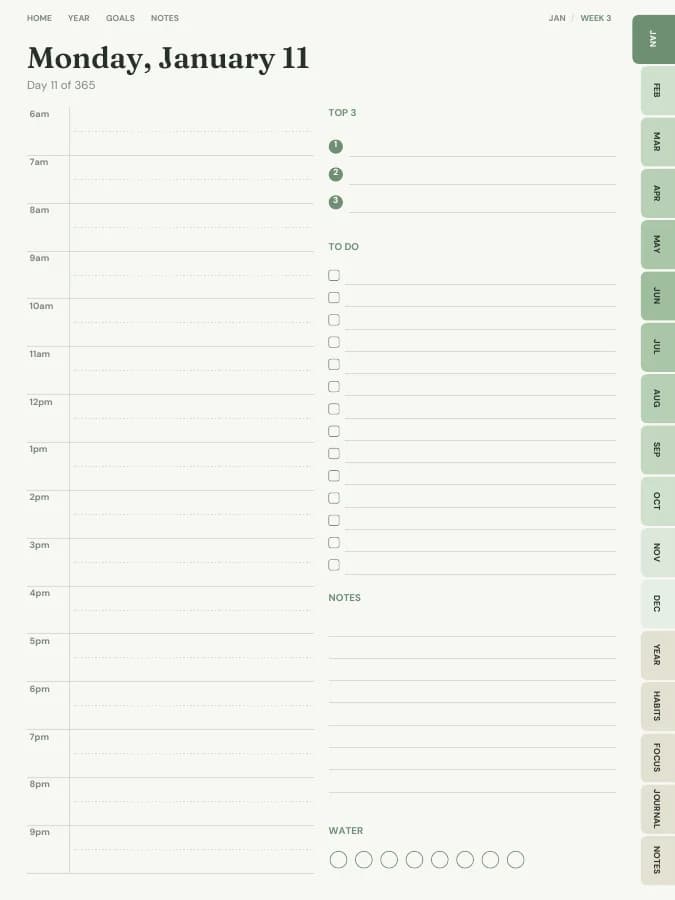
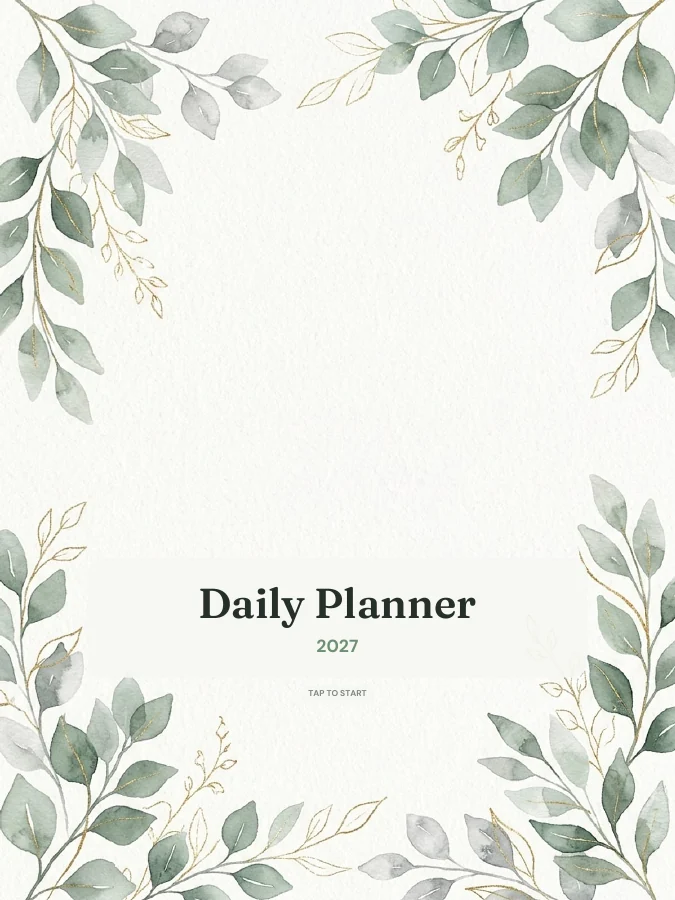
Daily Planner
A dated page for every single day, with schedule, priorities and to-dos.
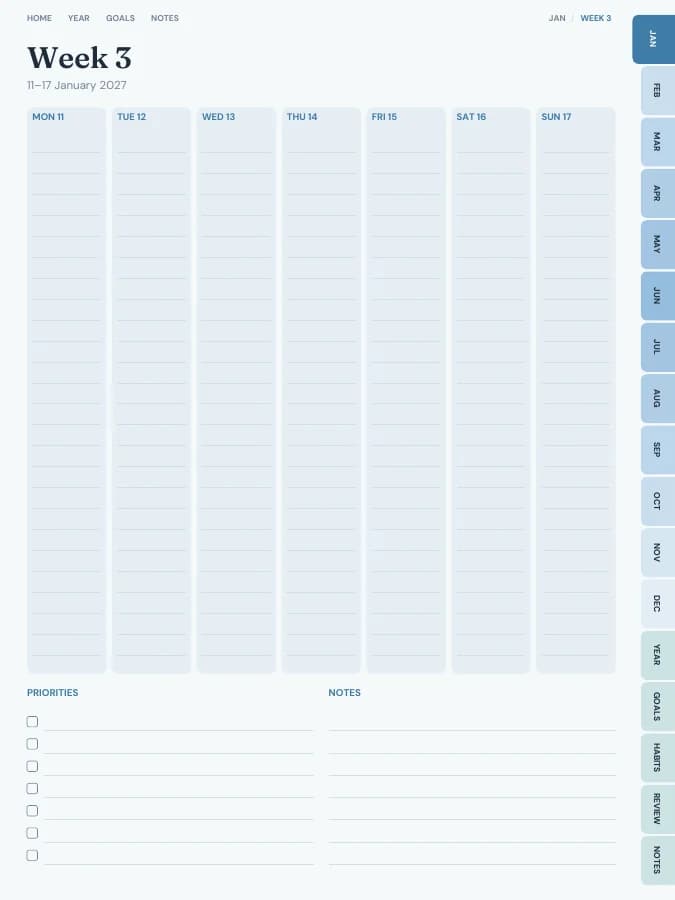
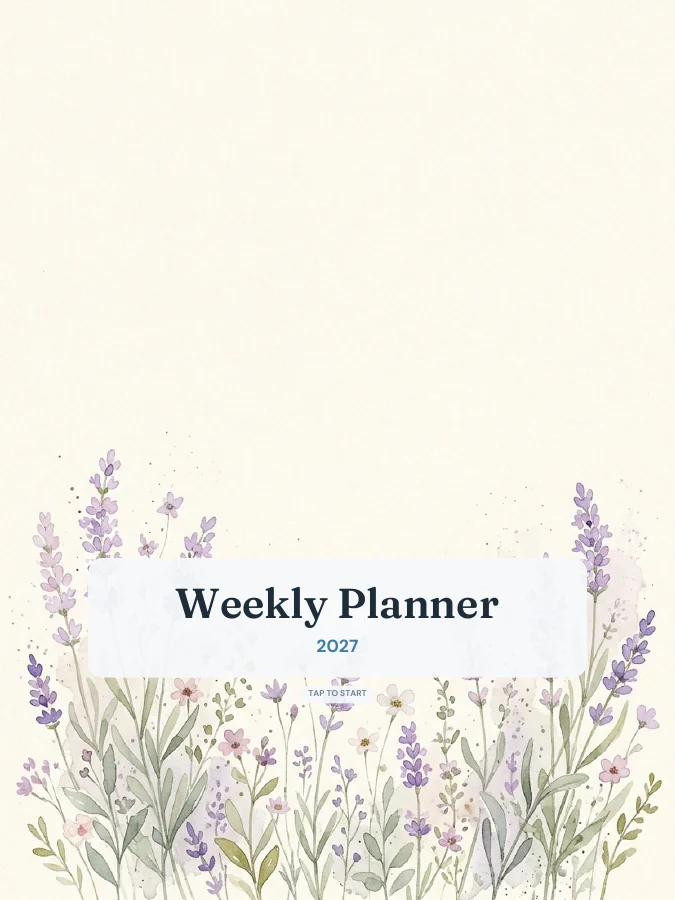
Weekly Planner
See your whole week at a glance — lighter than a daily planner.
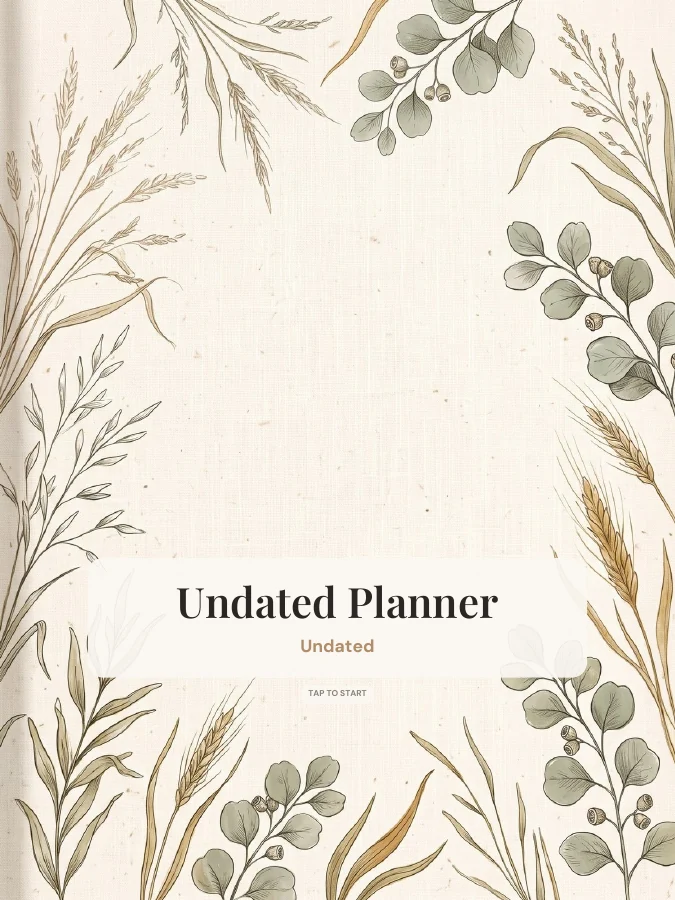
Undated Planner
Start any day, skip any day — nothing goes to waste.