How to use digital stickers in your planner
Sticker books come with Pro in every theme: labels, banners, washi, icons and date covers. Use the whole book as a PDF, or single transparent PNGs.
You'll need
- A Pro or Seller plan
- Your planner open in a note app
34-second video with captions, no sound. Filmed on the real site and real planner pages.
Step by step
- 1
Find Sticker books
In your dashboard, the Sticker books panel is on the right.
- 2
Choose theme and size
Pick the theme that matches your planner and the device format you use.
- 3
Download the sticker book
Tap Sticker book (PDF) for one file with every sticker, or Single stickers for a zip of PNGs.
- 4
Open it beside your planner
Import the sticker book into the same app as your planner, as its own document.
- 5
Lasso, copy, paste
Lasso a sticker in the book, copy it, switch to your planner page and paste.
- 6
Or insert a PNG
In apps like Samsung Notes and Notability, insert a single PNG as an image. The transparent edges let the page show through.
Save favourites
GoodNotes 6 lets you save stickers you use often as Elements, so they're one tap away.
Planners to try it with
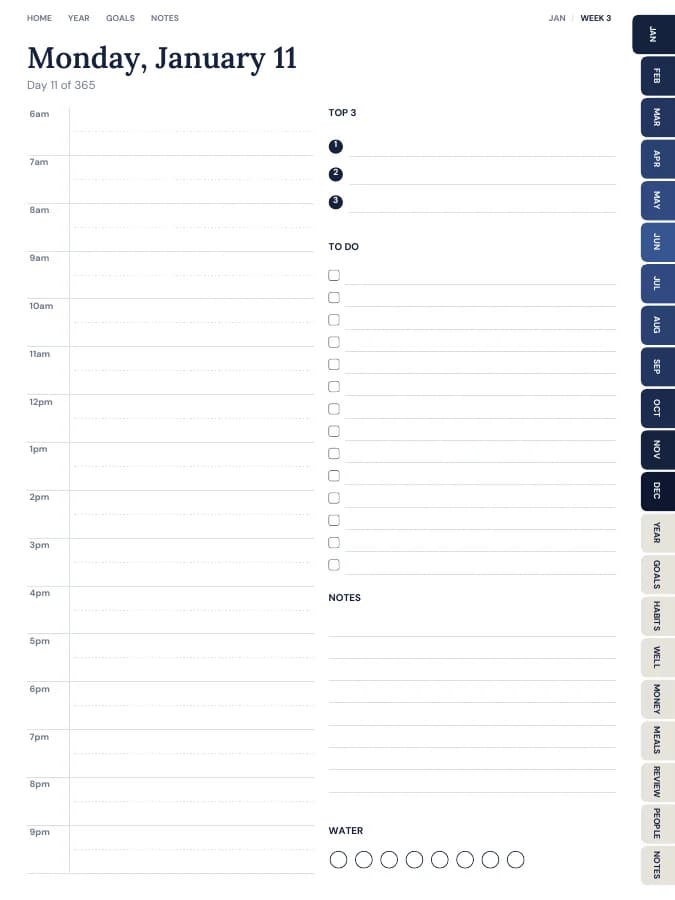
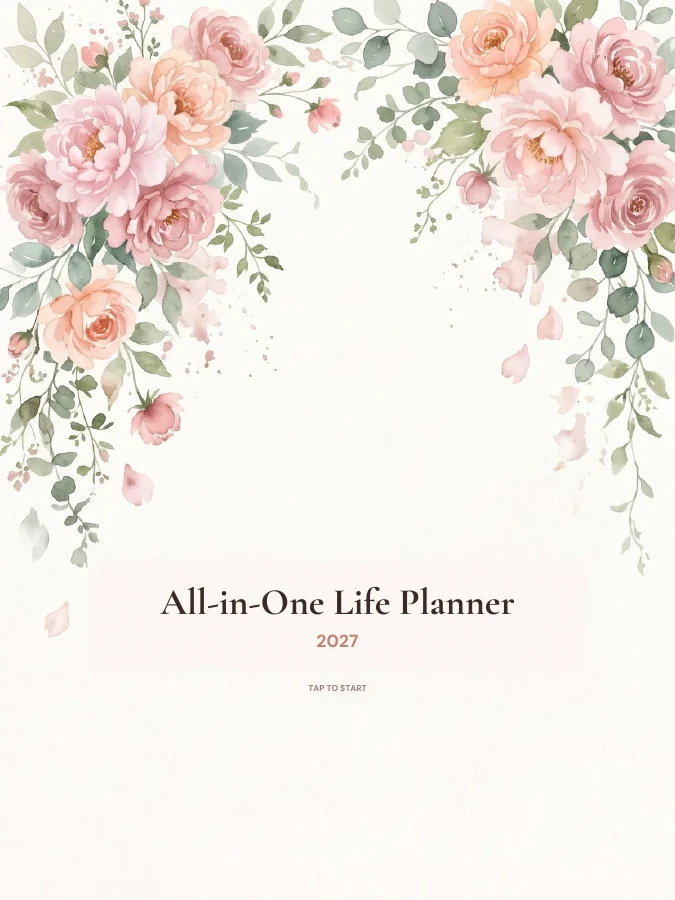
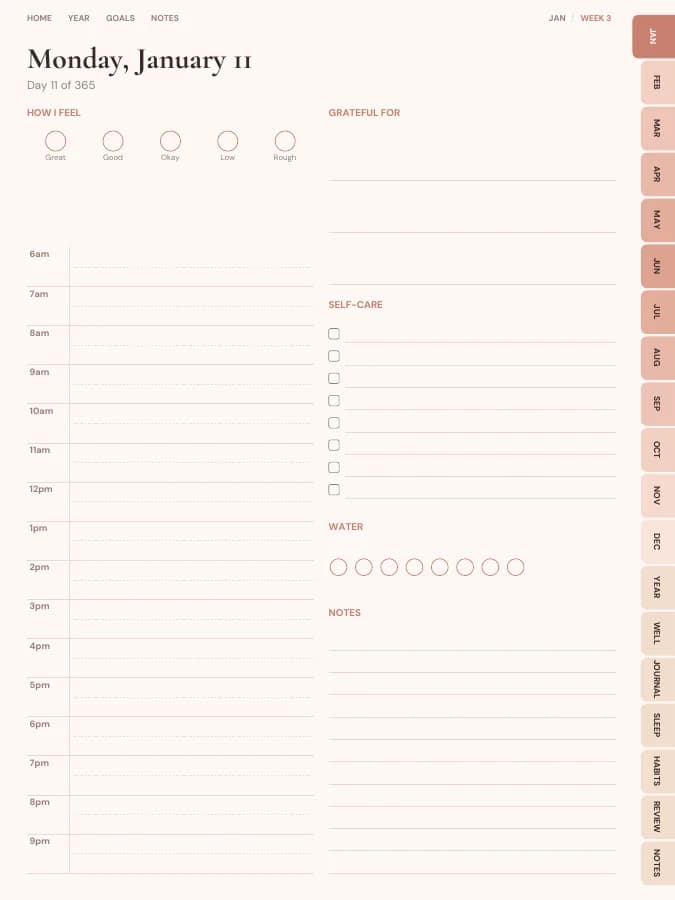
All-in-One Life Planner
Your whole year — goals, habits, money and meals — in one tabbed planner.
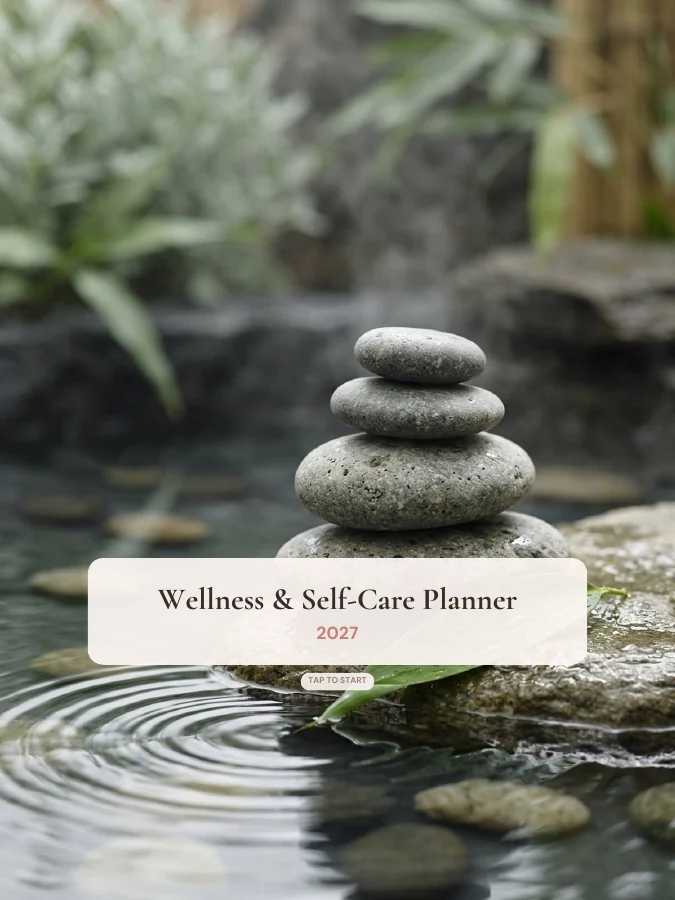
Wellness & Self-Care Planner
Mood, sleep, gratitude and gentle routines for a calmer year.
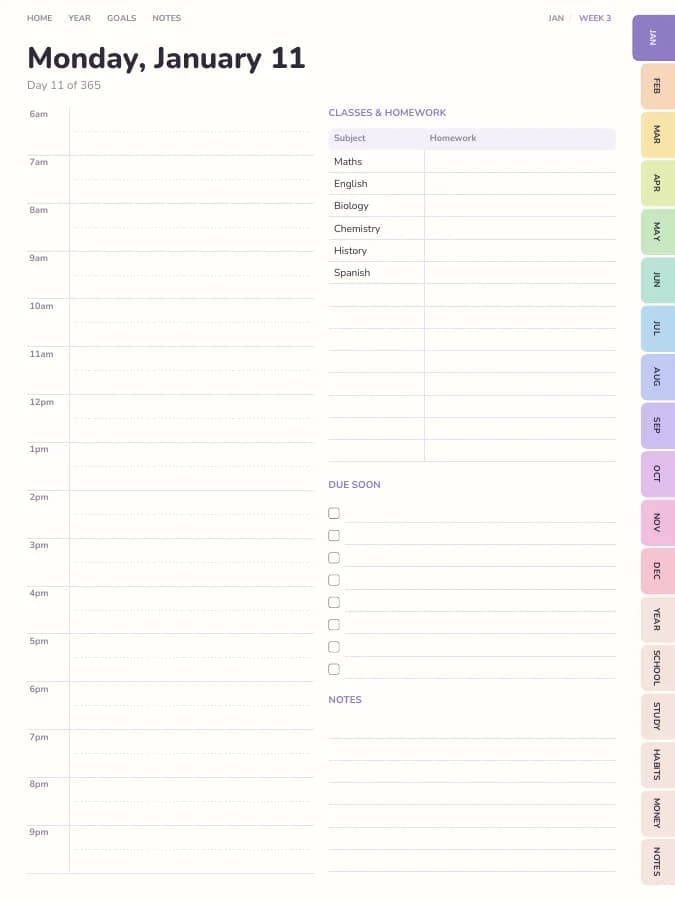
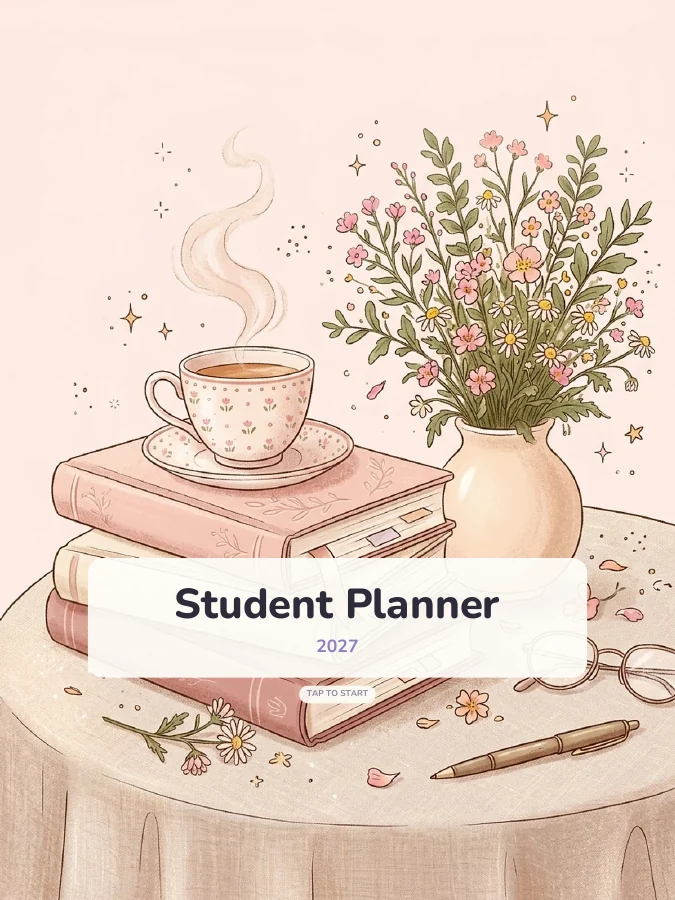
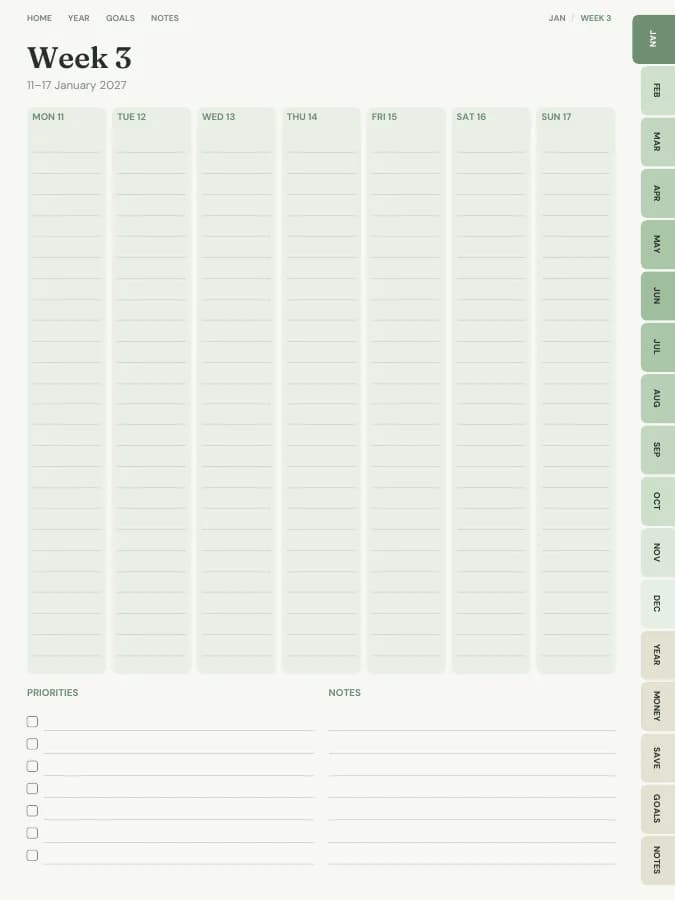
Student Planner
Classes, assignments, exams and grades — all linked to your calendar.
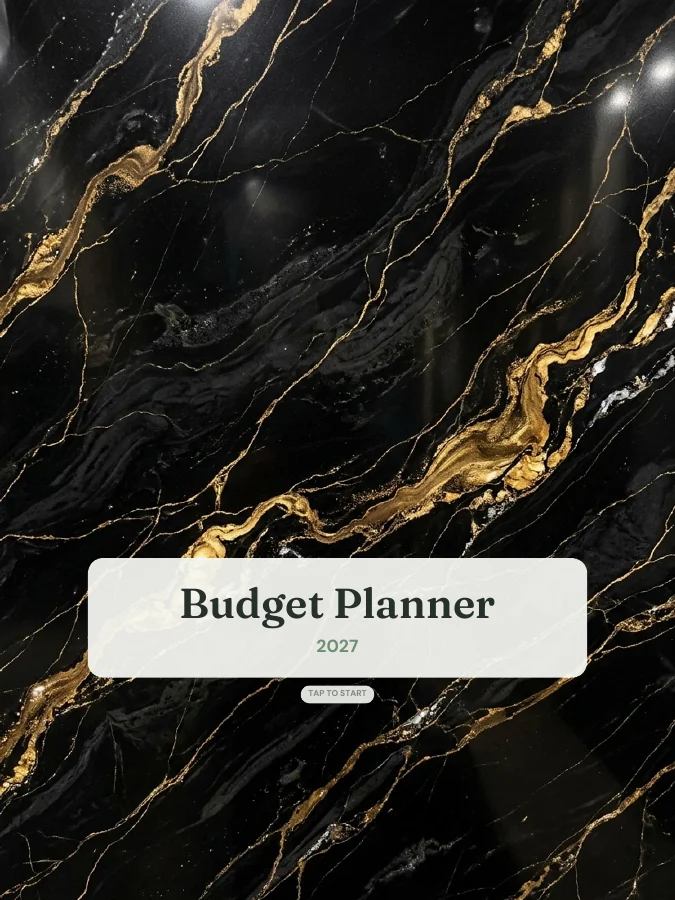
Budget Planner
Monthly budgets, bills, savings and debt payoff — in your own categories.