How to import your planner into Notability
Notability opens a planner PDF as a note with every page and link intact. The only trick is knowing when a tap follows a link and when it writes.
You'll need
- An iPad with Notability
- Your planner in the iPad portrait or landscape format
39-second video with captions, no sound. Filmed on the real site and real planner pages.
Step by step
- 1
Download your planner
In your dashboard, tap Download PDF. On a computer, download it there and send it to the iPad with AirDrop or iCloud Drive.
- 2
Find it in Files
Open the Files app and look in Downloads, or wherever you saved the PDF.
- 3
Share it to Notability
Press and hold the PDF, tap Share and choose Notability. You can also use the import option inside Notability and pick the file.
- 4
Open it as a new note
Notability imports the PDF as a new note. A large planner can take a moment to open the first time.
- 5
Give it its own subject
Move the note into a subject of its own, so your planner doesn't get lost among class or meeting notes.
- 6
Tap links when not writing
Links respond when the pen isn't active. Switch away from the pen, or tap with a finger if only the Apple Pencil writes, then tap a tab or a date.
- 7
Write, then add stickers
Pick your pen to write on the page. Sticker PNGs can be pasted onto a page as images.
Planners to try it with
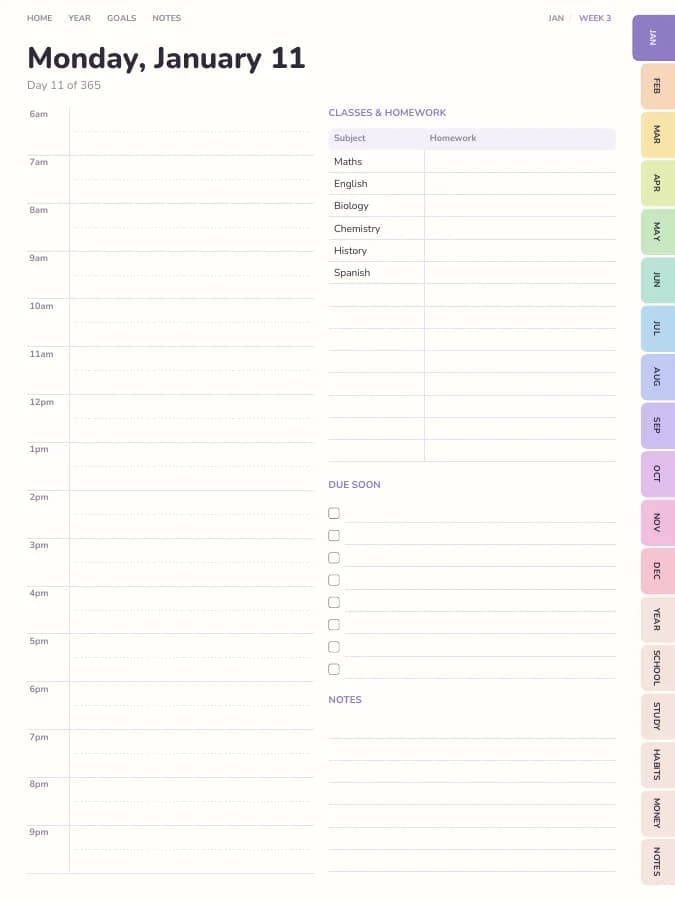

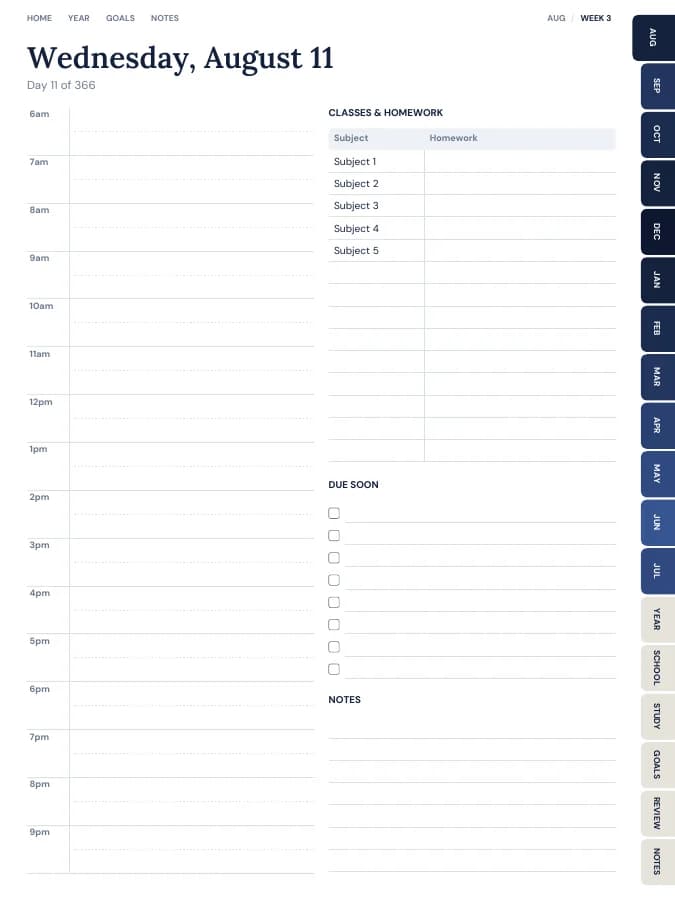
Student Planner
Classes, assignments, exams and grades — all linked to your calendar.
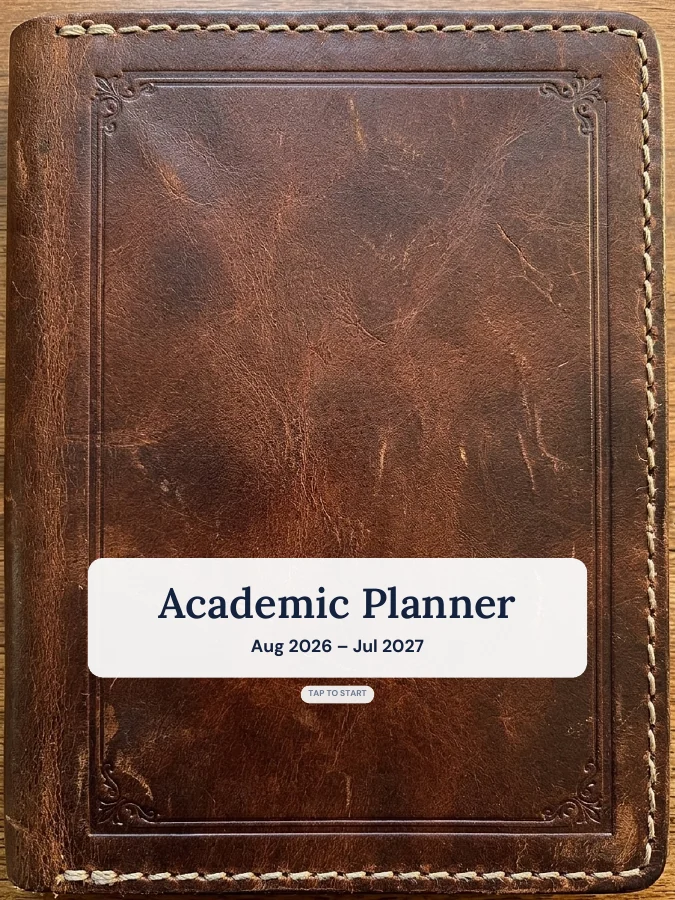
Academic Planner (Aug–Jul)
A school-year planner that starts in August and runs to July.
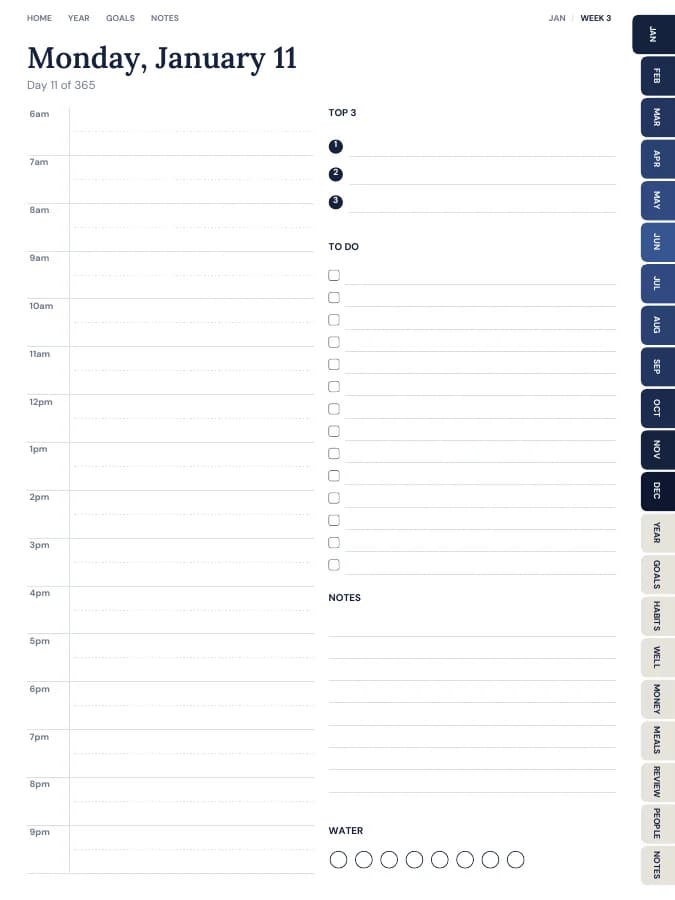

All-in-One Life Planner
Your whole year — goals, habits, money and meals — in one tabbed planner.
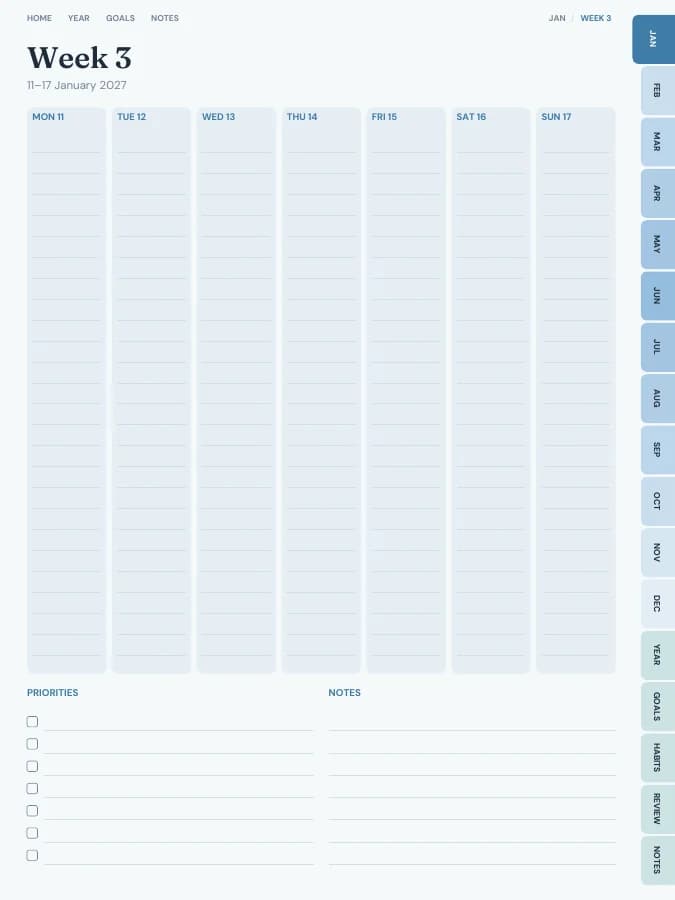
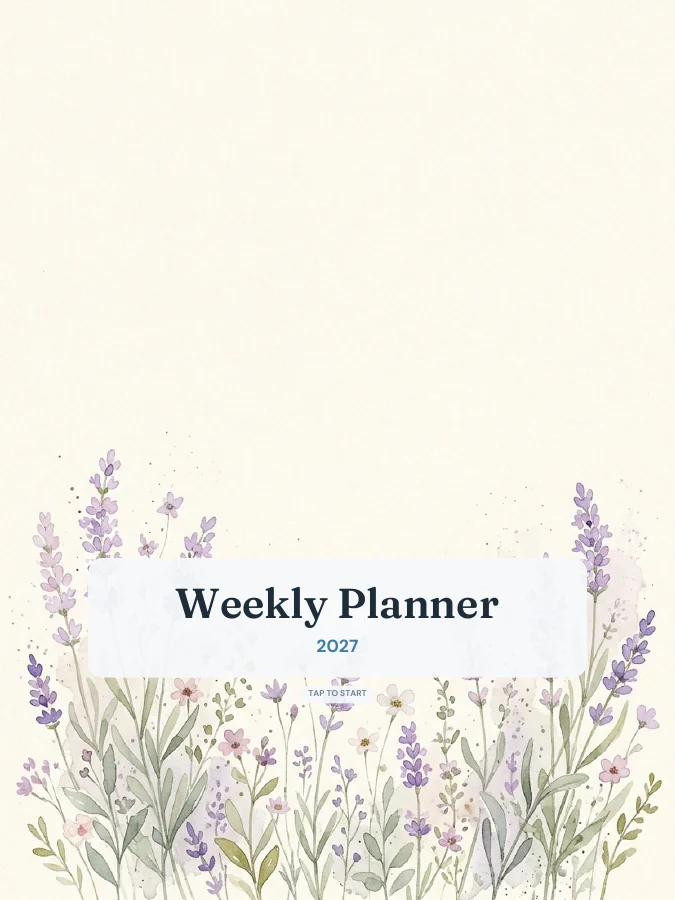
Weekly Planner
See your whole week at a glance — lighter than a daily planner.