How to import your planner into Samsung Notes
Samsung Notes is free on Galaxy tablets and follows the links in an imported planner. Start with pages sized for a 16:10 Android screen and the rest is quick.
You'll need
- A Galaxy Tab or other Android tablet with Samsung Notes
- A planner in the Android tablet format
39-second video with captions, no sound. Filmed on the real site and real planner pages.
Step by step
- 1
Pick the Android format
In the builder's Device step, choose Android tablet portrait or landscape. The pages are drawn to fill a 16:10 screen.
- 2
Download on the tablet
Download the PDF in Chrome or Samsung Internet. It lands in Downloads in the My Files app.
- 3
Import the PDF
Open Samsung Notes and use its Import PDF option, then choose your planner from Downloads.
- 4
Wait for the import
A planner with daily pages can take a minute or two. Let it finish before you start tapping.
- 5
Switch to read mode
Links respond when you're not writing. Switch to read (view) mode, then tap a tab or a date to jump.
- 6
Switch back to write
Turn editing back on to write. Many people set the S Pen button to the eraser for quick fixes.
- 7
Back it up
Sync with Samsung Cloud, and download your planner again from the dashboard whenever you need a fresh copy.
Planners to try it with
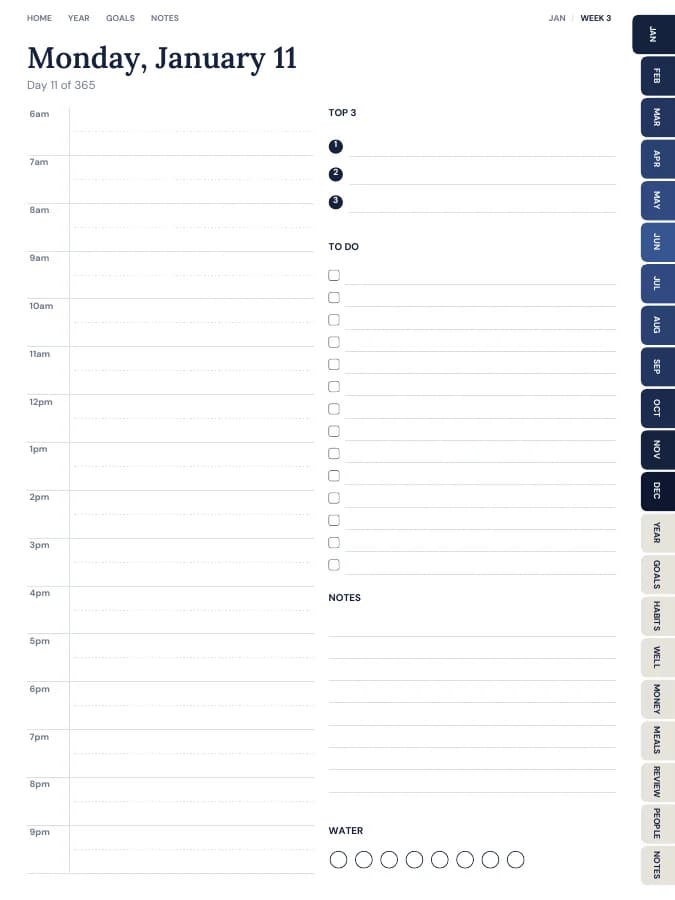

All-in-One Life Planner
Your whole year — goals, habits, money and meals — in one tabbed planner.
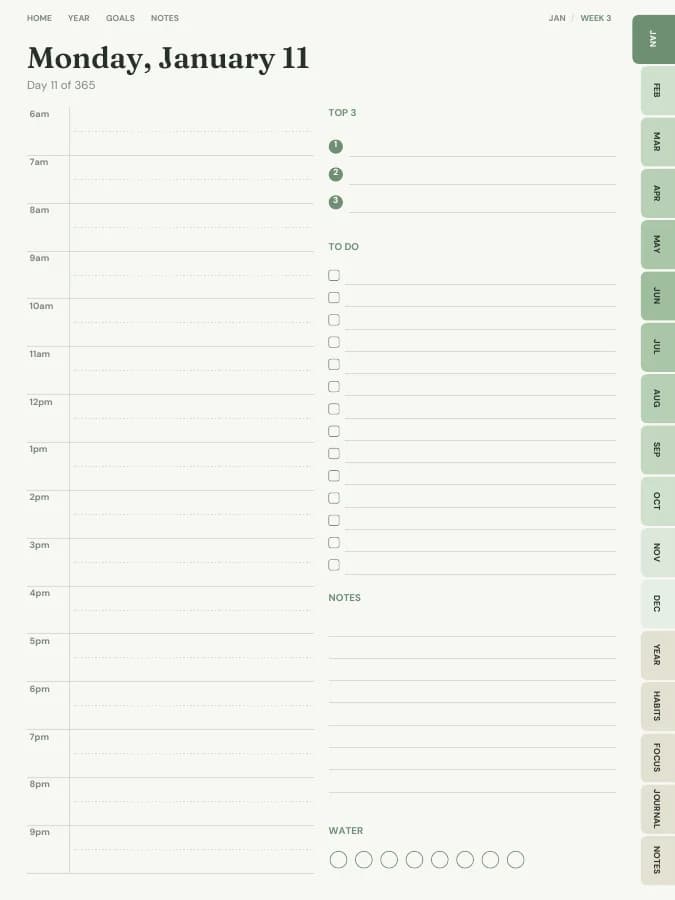
Daily Planner
A dated page for every single day, with schedule, priorities and to-dos.
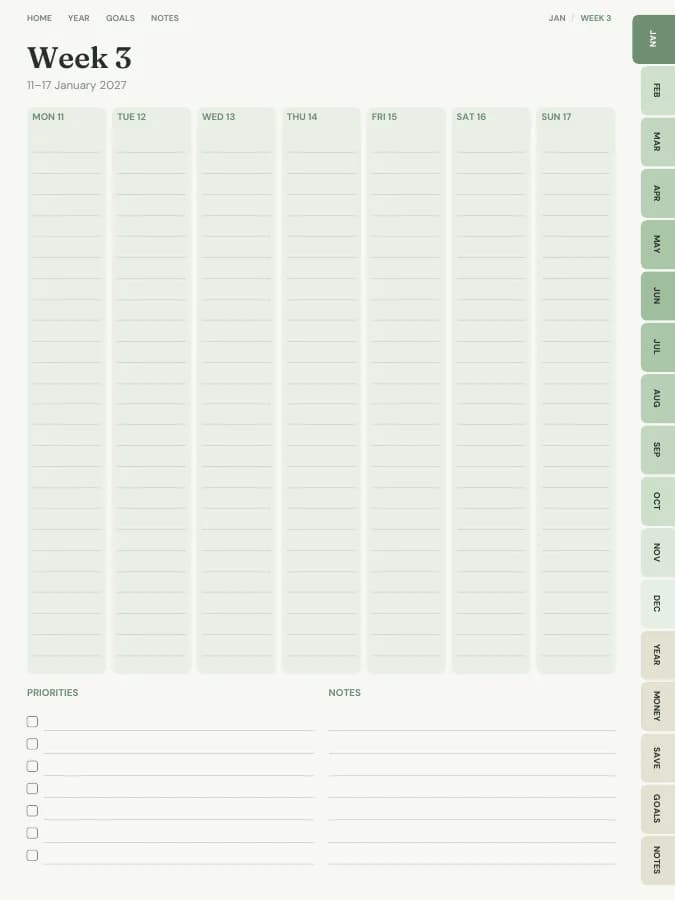

Budget Planner
Monthly budgets, bills, savings and debt payoff — in your own categories.
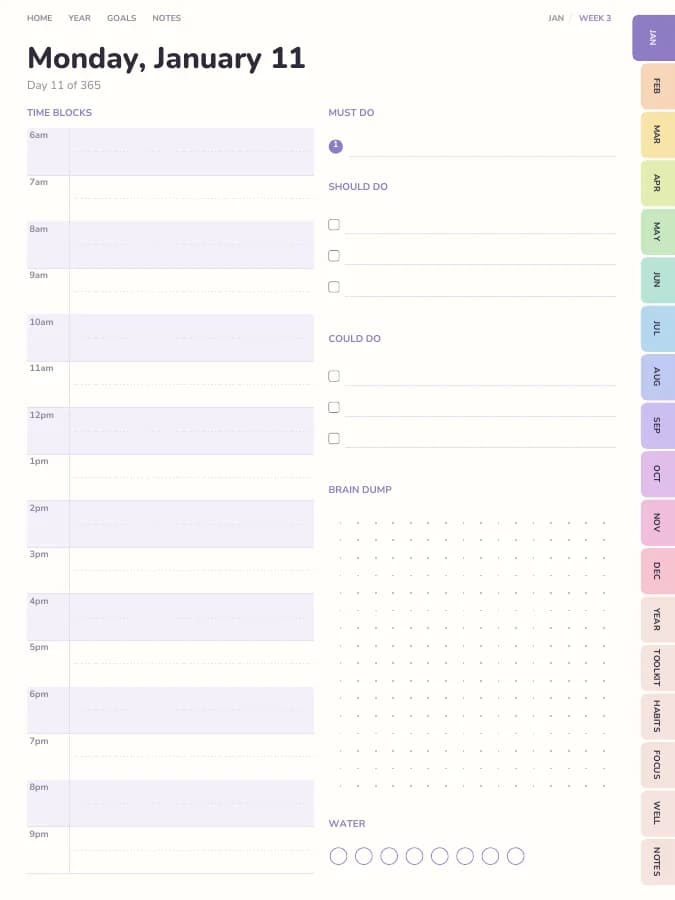

ADHD Planner
Time blocks, brain dumps and tiny steps — designed for ADHD brains.