How to make next year's planner from this one
When the year runs out you don't need to start again. Your saved planner keeps its theme, sections and goals, and one tap moves every date forward a year.
You'll need
- A free account with a saved, dated planner
34-second video with captions, no sound. Filmed on the real site and real planner pages.
Step by step
- 1
Open your dashboard
Sign in and open My planners. Every planner you've saved is listed there.
- 2
Make it next year
On the planner, tap Make it 2028 (the button always shows the next year). Every date moves on by one year.
- 3
Check the new year
The card now shows the new start date. Goals are kept, and their dates follow the new start.
- 4
Edit if you like
Tap Edit to change the theme, sections or goals for the new year before you download.
- 5
Download it again
Tap Download PDF to get the new dates.
- 6
Import it fresh
Import the new PDF into your note app as a new document, and keep last year's planner as it was.
Undated planners
Undated planners work every year, so they don't have this button. Write the dates in yourself.
Planners to try it with
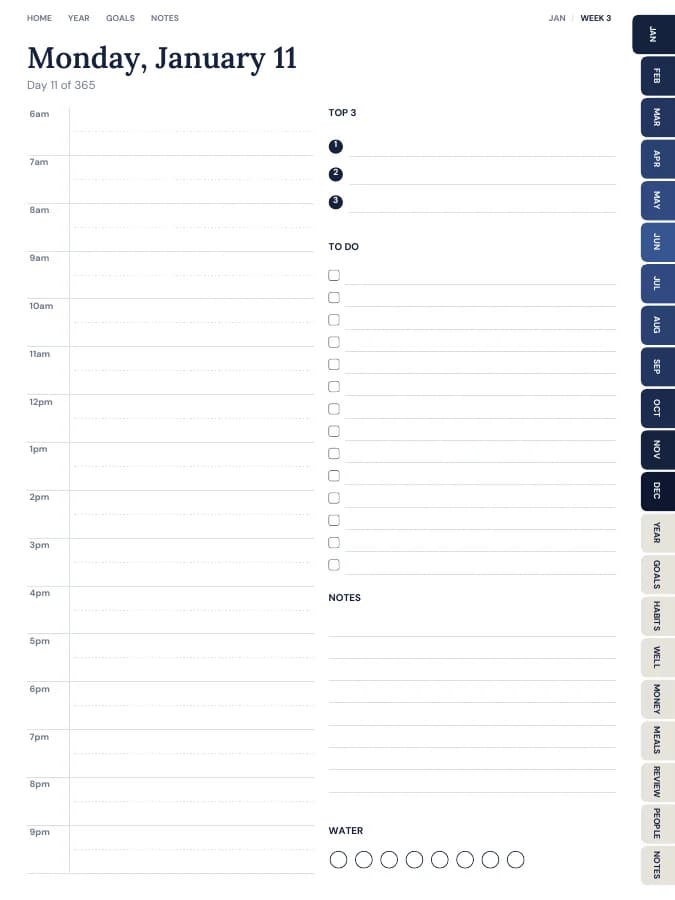
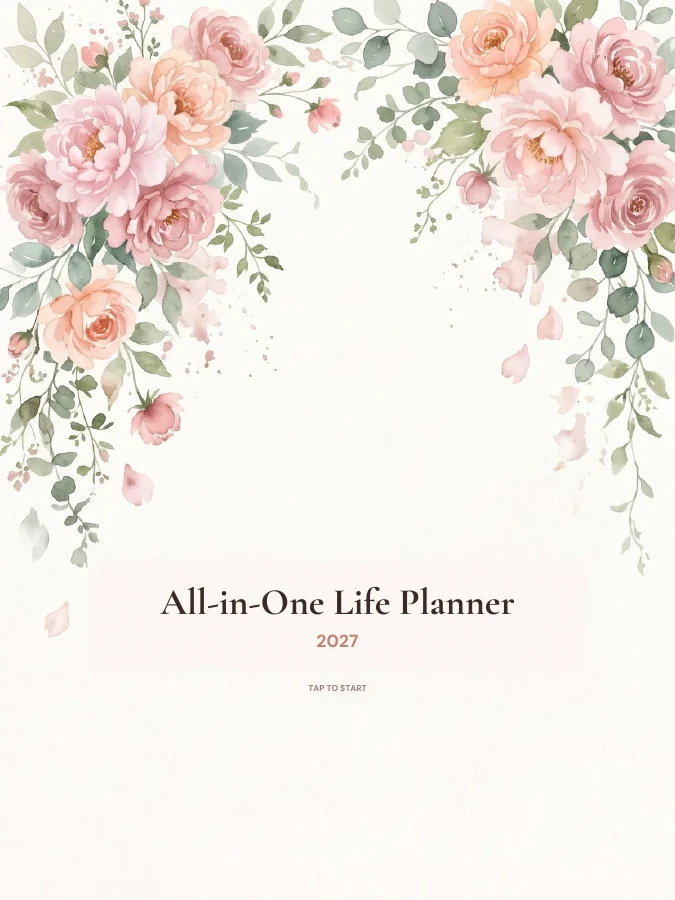
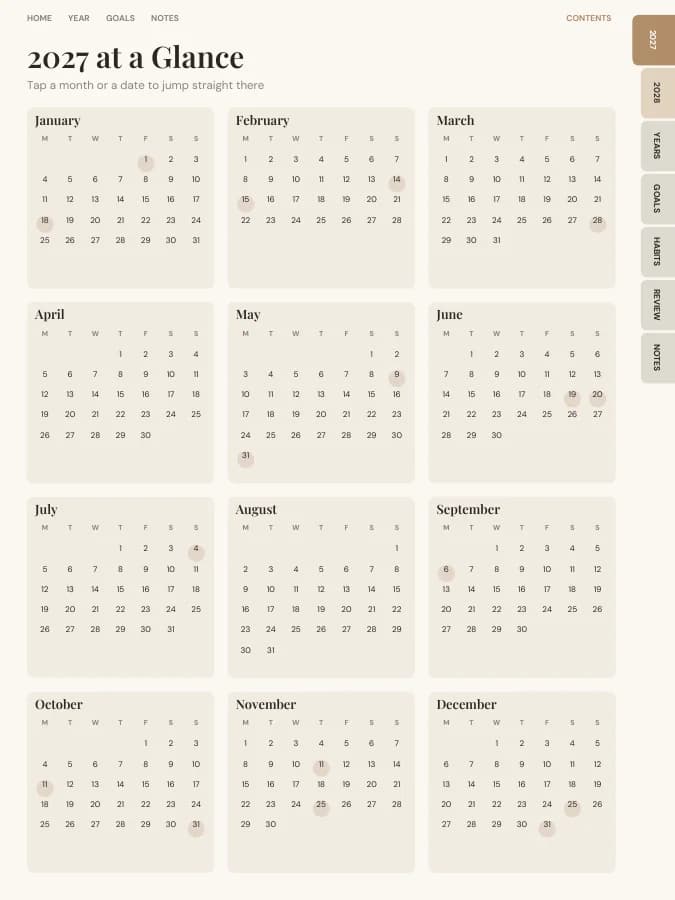
All-in-One Life Planner
Your whole year — goals, habits, money and meals — in one tabbed planner.
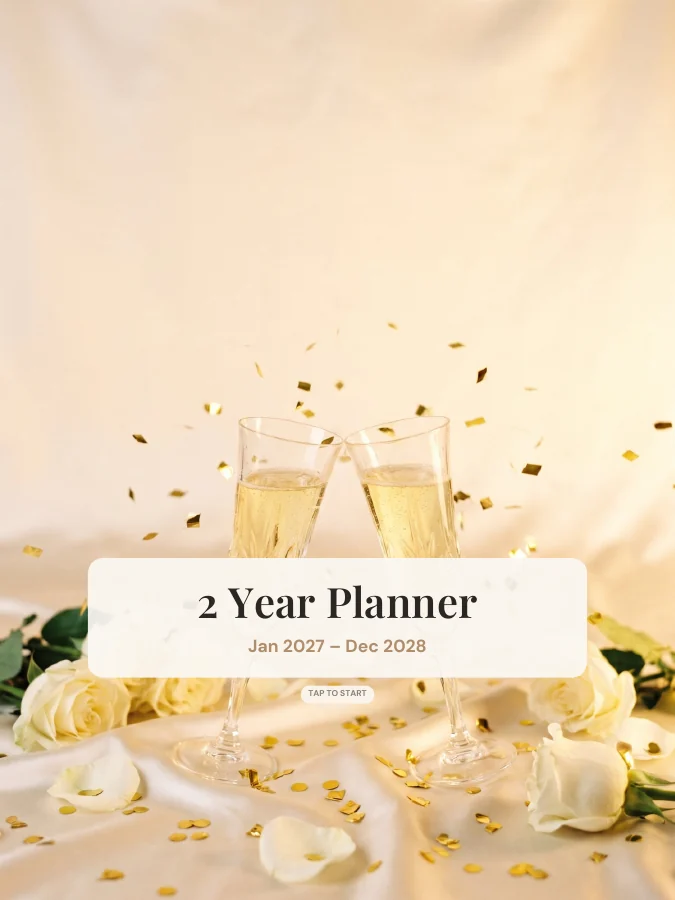
2 Year Planner
Two years of months in one file, for plans that don't stop in December.
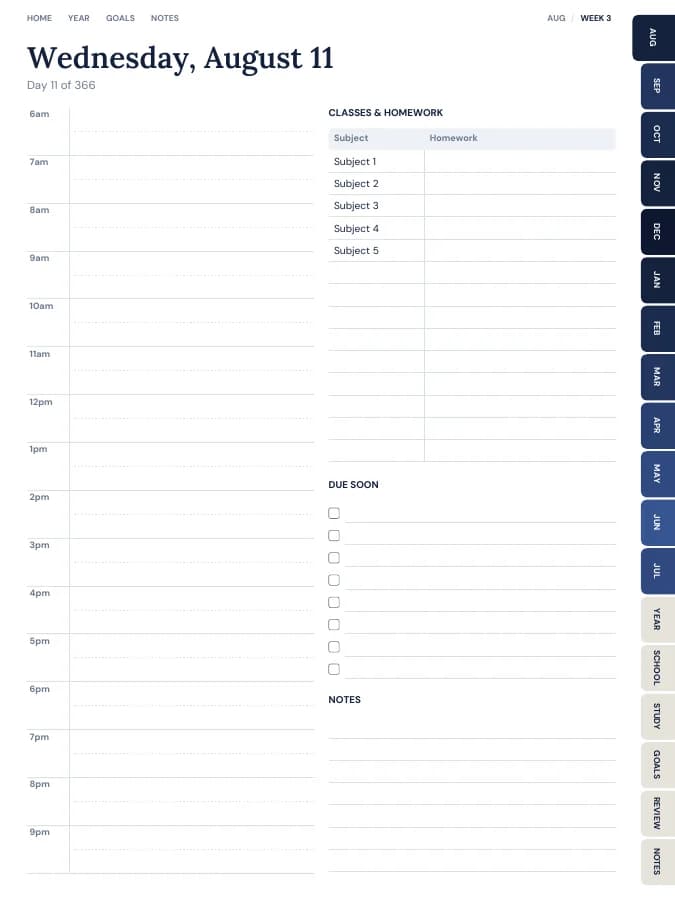
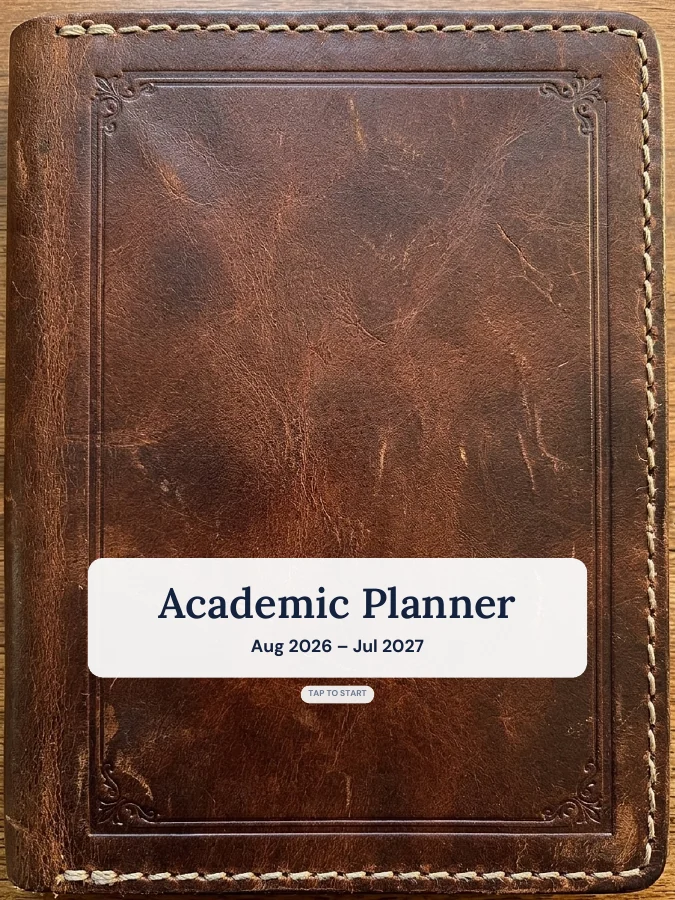
Academic Planner (Aug–Jul)
A school-year planner that starts in August and runs to July.
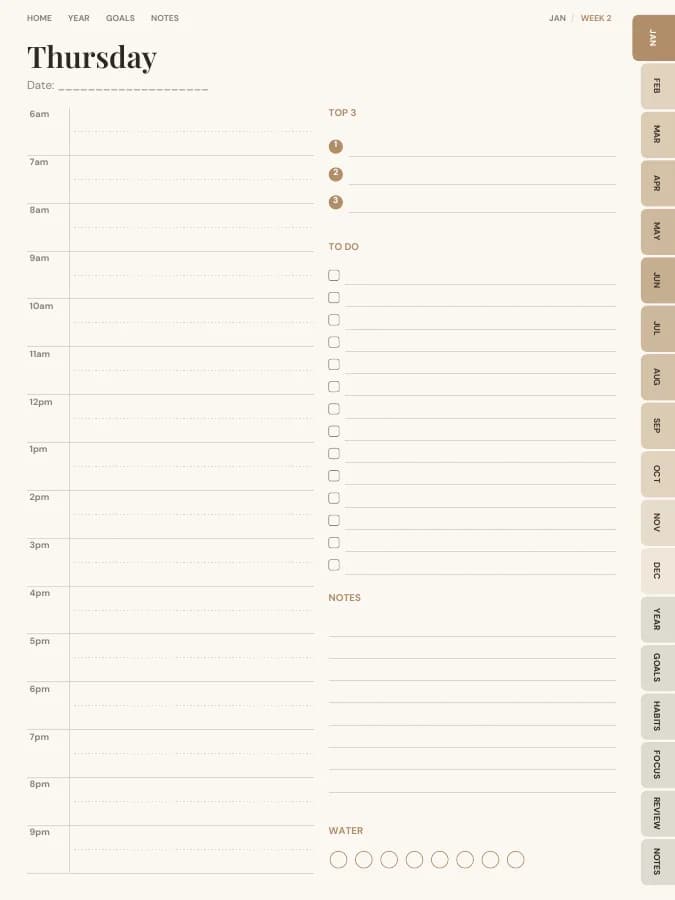
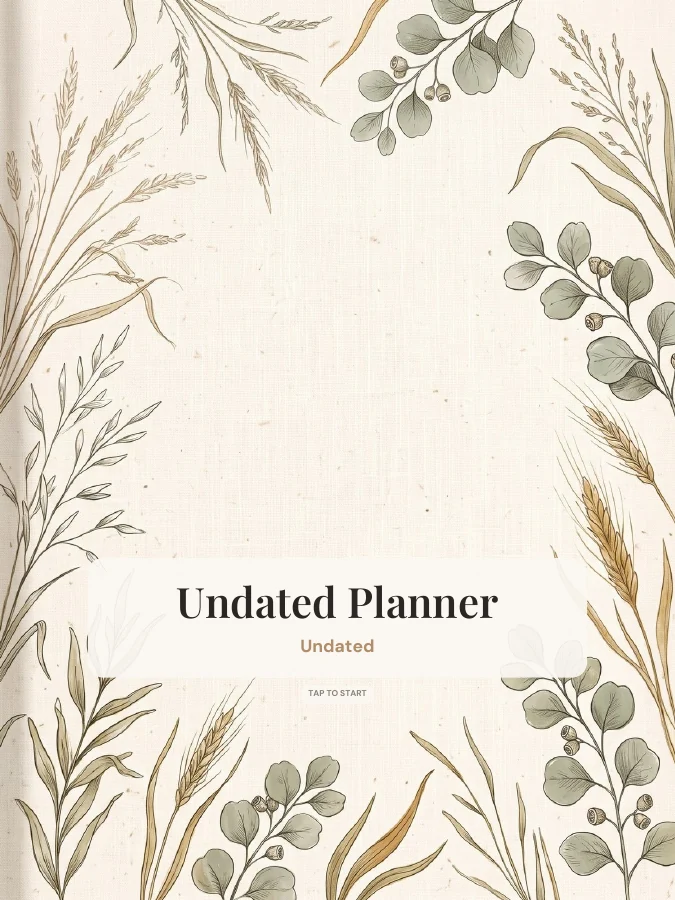
Undated Planner
Start any day, skip any day — nothing goes to waste.