Add hyperlinks to a PDF planner you designed yourself
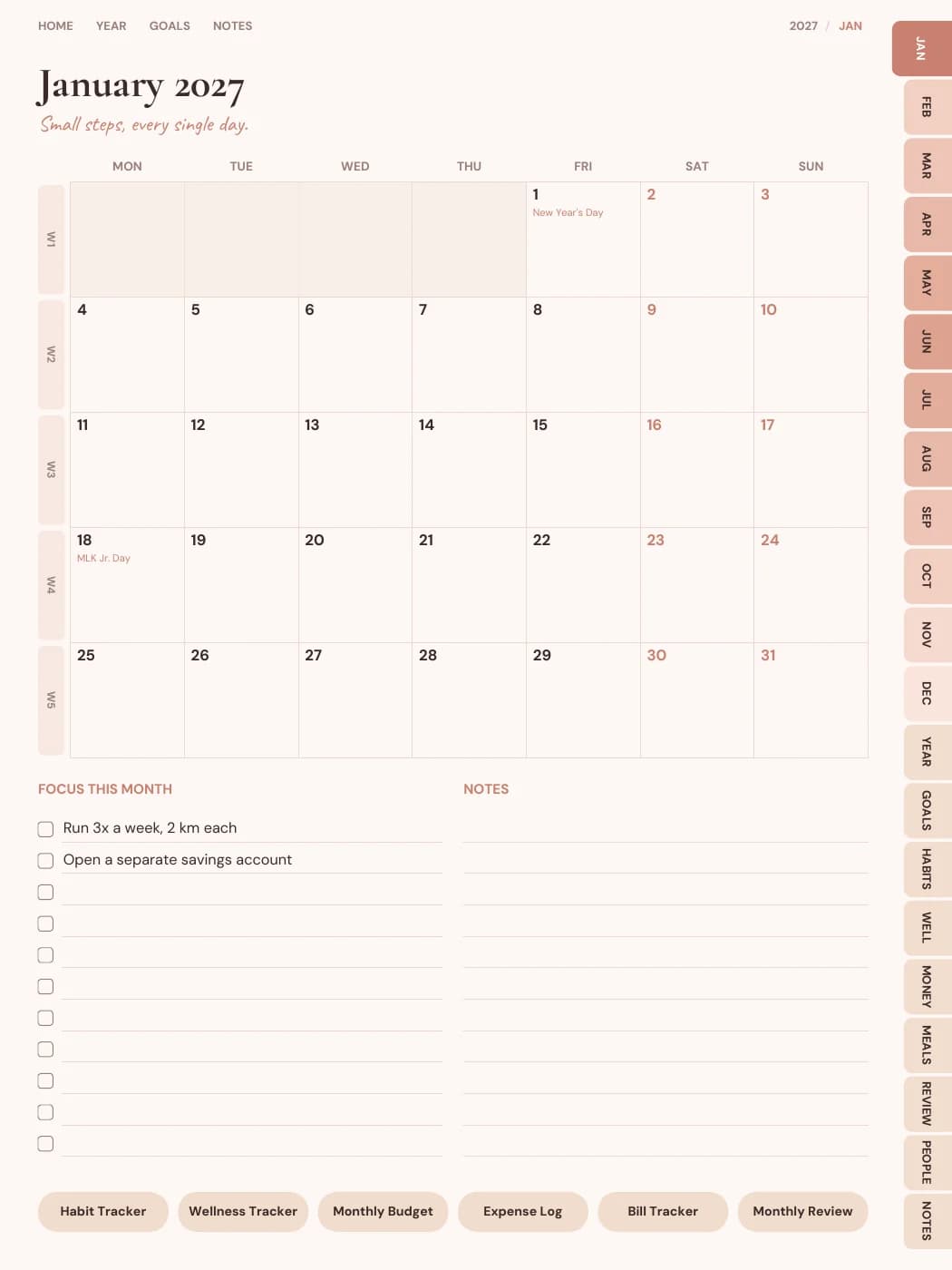
Made your planner in Canva, Keynote or Affinity? Upload the PDF, draw a box around your tabs once, and the tool links every tab on every page. Test the links in a free watermarked preview, then download for $7, or as often as you like on the Seller plan.
Free watermarked preview with working links. $7 to download one file, or unlimited on the Seller plan.
How it works, in three steps.
- 1
Upload your PDF
Up to 60 MB and 1,000 pages. Export it from Canva, Keynote or any design app first.
- 2
Draw tabs and links
Use Tab strip to draw one box around a row or column of tabs, then say how many tabs it holds and which page each opens. Use Single link for buttons, dates or words.
- 3
Preview, then download
Open a watermarked copy and tap every link. When it's right, download the clean file.
What it does, and what it doesn't.
It does
- Adds real PDF links that work in GoodNotes, Notability, Samsung Notes and other apps that follow internal links
- Repeats a tab strip on every page, so 12 month tabs become 12 working links on each page
- Puts a single link on one page, every page or a range of pages
- Leaves a repeated button off the page it already points to
- Leaves your design exactly as it is; only invisible link areas are added
- Gives a free watermarked preview with working links before you pay
It doesn't
- Design pages or draw tabs. Your PDF needs its tabs and buttons on the artwork already
- Find your tabs automatically. You draw each strip or link once
- Open password-protected PDFs. Export an unlocked copy first
- Take files over 60 MB or 1,000 pages
- Include a licence to sell. Files linked with a $7 credit are for personal use; selling needs the Seller plan
Getting the links right first time.
- Write down the page numbers first. Note which page each tab should open. In a 400-page planner, January might be page 15.
- Keep tabs in the same place on every page. A tab strip assumes they don't move. If some pages have a different layout, link those with single links.
- Export at the final page count. Adding or removing pages later shifts page numbers, and links point to numbers.
- Test on the device you'll use. Open the preview in GoodNotes or your usual app and tap tabs on a page near the start, the middle and the end.
Want the whole method, including Canva's and Acrobat's own link tools? Read how to hyperlink a PDF or the Canva hyperlinked planner tutorial.
Device notes.
GoodNotes
Links work in read-only mode, or with a finger tap when only the Apple Pencil draws.
Notability
Links work when you're not writing. Switch away from the pen, or tap with a finger if only the Pencil draws.
Samsung Notes and Android
Recent versions of Samsung Notes follow internal links in read mode. Penly, Flexcil and Xodo do too.
E-ink tablets
reMarkable, Kindle Scribe and Boox follow internal links on recent software. Test with the preview first.
On a computer
Any PDF viewer that follows links, including Acrobat and Mac Preview, is a quick way to check the preview.
Questions people ask
How do I add hyperlinks to a PDF planner?
Upload the PDF to the hyperlink tool, draw a box around each row or column of tabs, enter the page each tab should open, and preview. The tool repeats the tabs on every page. For other methods, see how to hyperlink a PDF.
Is it free?
The preview is free, with a watermark and working links. Downloading the clean file costs $7 per PDF, or it's unlimited on the Seller plan ($19 a month).
Can't I add the links in Canva?
You can: Canva's Link option can point to a page in the same design. It works one element at a time on each page, which adds up fast in a planner with hundreds of pages. The tab strip here links a whole column of tabs on every page at once.
Is my PDF kept?
It's uploaded only to add the links and is sent straight back to you.
Can I sell planners I link here?
Yes, if you link them on the Seller plan, which includes the commercial licence. Files linked with a $7 credit are for your own use.
Related
Your design, with working tabs.
Upload the PDF, draw your tabs and test every link in a free preview before you pay.
Open the hyperlink tool